Off the Artboard #3 – Vault-Boy-Like Character Creation Part 1

OffTheArtBoard

This is a tutorial requested by my good friend and fellow Illustrator neophyte, Ron Peaks.  Looking to use a simple cartoon character for a manual similar to the cartoon Vault-Boy character from the Fallout series, yet still usable in a non-Bethesda-Obsidian publication.  It sounded like a good challenge so I took him up on it.

I have two warnings about this!  First, it’s a LOT longer than intended, because it has a lot of screenshots.  Second, this is just the way I figured out how to do it with my limited Illustrator knowledge.  I’m sure there are other, better ways, but if you want to learn how to make this kind of character with just basic tools this was the way that was most intuitive to me.  It uses just a few basic tools and is easy to color and personalize.

I’ve tried hard to not sound like Strong Bad trying to teach everyone to draw a dragon… (draw and “s”…then a more different “s”…)

This post will appear in two parts, this on shows how to make the character’s head.  One in a few weeks will show how to make his body.

An Illustrator Simpleton’s Guide to Making a Character that Resembles, Yet is Legally Distinct, from Fallout’s Vault-Boy:

 Step 1:

Create a perfect circle by selecting the ellipse tool, holding alt+shift and left click dragging it onto the page.

VB1

Step 2:

Add two anchor points using the add anchor point tool (it is in the same family as the pen tool left click and hold the pen tool and select it from the list that appears)  in between the left bottom and right top existing anchor points on the circle.  Click the “direct selection” tool, click each of the new anchor points you’ve just created (you may have to click them then click them again to ensure you’ve selected them).  Click and hold and drag them to a new location to warp the circle and make it appear a bit more square.
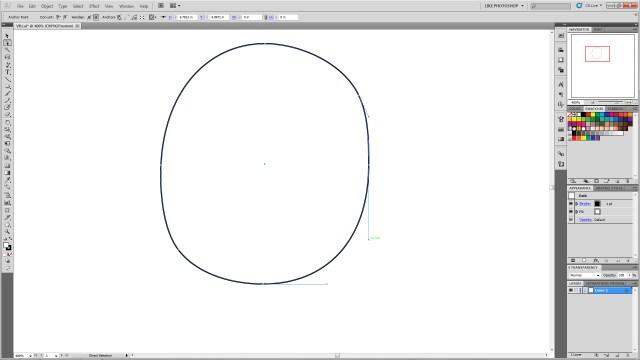
VB2

Step 3:

Create an oblong ellipse for the left eye.  Select it, ctrl+c to copy, ctrl+b to paste it behind the original eye.  (DO NOT click off of an object you’ve copied behind another object.  It will be extra steps and finagling to get it selectable again.  Any time you ctrl+c, ctrl+b in this tutorial DO NOT click anywhere else on the artboard, as it will deselect the new object and you’ll have to navigate to find it again.)   Then using the arrow keys nudge it to create the right eye.  While the right eye is selected shift+alt and resize and make it slightly smaller than the left (for perspective)

VB3

Step 4:

Select the star tool from the polygons.  Change it from 5 points to 3.  Click on the art board to create a triangle.

VB4

Step 5:

Rotate the triangle so the top point faces left.

VB5

Step 6:

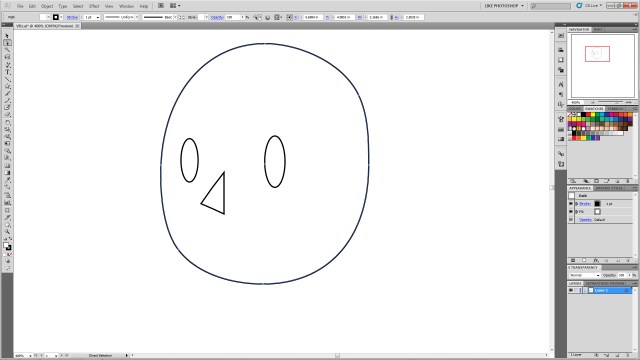
Using the direct selection tool again, move the various specific anchor points to create the desired shape of the nose.
VB6

Step 7:

Using direct selection tool, select the central anchor point on the back of the nose.  Once it’s specifically selected hit delete to remove the line segment.

VB7

Step 8:

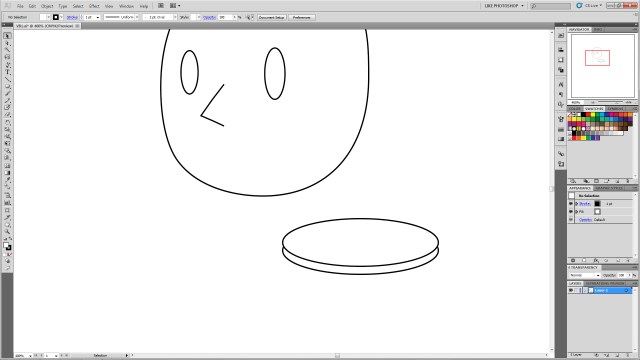
Using the ellipse tool create a wide oblong ellipse.  ctrl+c to copy it, ctrl+f to paste it forward and nudge it up.  This will be to create the smile, so feel free to move it to the desired position to make a bigger or different mouth.  You can also change the shape of the circle to make a bigger smile, a frown, or using different shapes and warps to make various expressions.
VB8

Step 9:

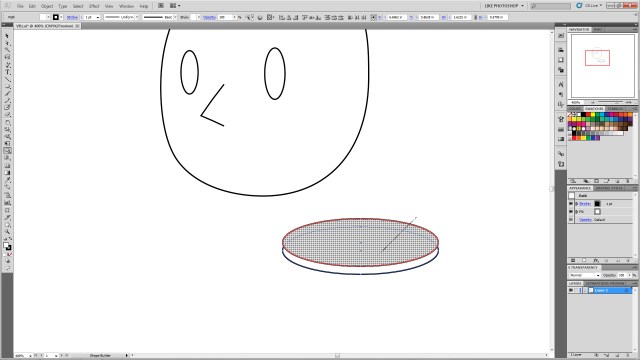
Select both circles.  Using the shape builder tool in CS5, hold alt and click and hold the top circle as shown.  Drag the curser through the top of the circles and release.  This will remove the unwanted shapes.
VB9

Step 10:

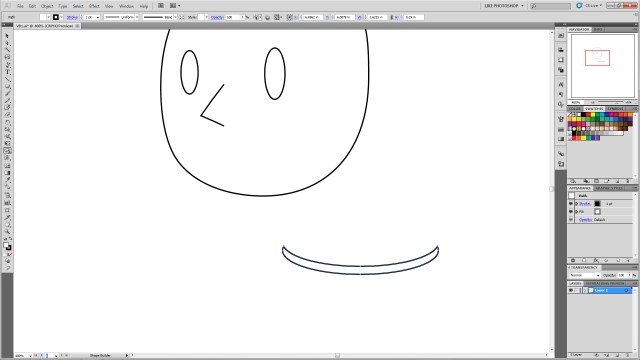
You’ll be left with just the desired “smile” shape.
VB10

Step 11:

Position the new “smile” in the desired place on the head.

VB11

Step 12:

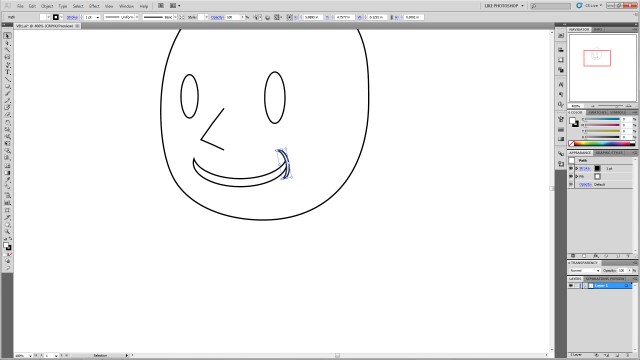
With the smile selected, ctrl+c to copy, ctrl+f to paste it in front of the smile.  Then, with the new shape selected, go to the menu, click Object–>Transform–>Rotate and type 90 into the box.  Then resize the item using shift+alt again to get it the appropriate size and move it to the corner of the mouth as shown.
VB12

Step 13:

Select the new mouth corner, ctrl+c to copy, ctrl+b to paste it behind.  Nudge it to the other side of the mouth.  Go to Object–>Transform–>Reflect and select vertical.  The select the main mouth shape again.  ctrl+c to copy, ctrl+b to paste behind.  Nudge it below the original mouth.  shift+alt resize it to make it smaller to create the line under the smile as shown.

VB13

Step 14:

Click the main smile shape again.  Ctrl+c and ctrl+f and move it above the eye.

VB14

Step 15:

From the menu select Object–>Transform–>Reflect and select horizontal to flip it.  Then shift+alt resize to get it the desired shape.  You can also select the object and free transform rotate it to get it the desired angle (you can make angry eyes, arched eye brows, etc.)

VB15

Step 16:

Select your new eyebrow.  Ctrl+c, ctrl+b and nudge it with the arrow keys over the right eye.  Go to Object–>Transform–>Reflect and select vertical to flip it and get it the correct angle.  Shift+alt resize it to make it a bit smaller for perspective.

VB16

Step 17:

Click the left eye (his left!)  Ctrl+c, ctrl+b, to paste the copy behind the original.  Nudge the new one up so it’s visible peeking out over the original eye and repeat the process for the other eye.

VB17

Step 18:

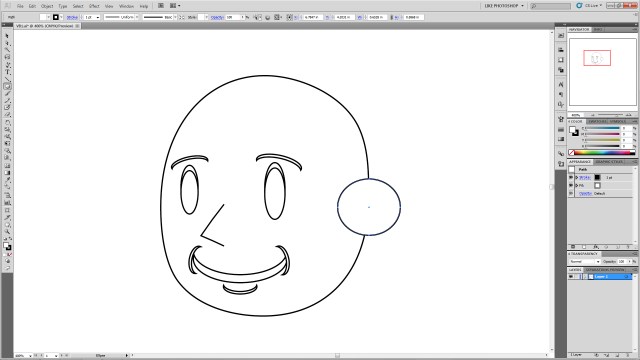
Using the ellipse tool, shift+alt to create a perfect circle on the side of the head.
VB18

Step 19:

Select the head shape and the new circle.  Using the shape builder tool, click inside the head shape, hold, and drag to the new circle to join the shapes as shown.

VB19

VB20

Step 20:

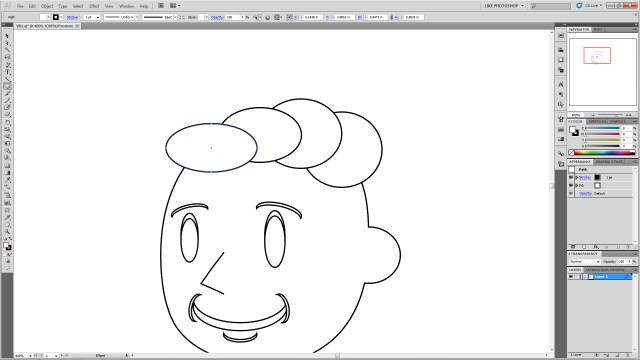
Using the ellipse tool create a series of circles on top of the head.  This will be for the hair so feel free to make an arrangement you like.  Just remember we’ll be joining these using shape builder, so it may take a few tries at this to ensure you get the desired final shape.
VB21

Step 21:

If you want the little swooshes as show, create two overlapping circles as shown, and select only those two.

VB22

Step 22:

Using shape builder, select the top circle, click hold+alt to delete the unwanted shape elements.

VB23

VB24

Step 23:

Drag the new crescent to the other circles, select ONLY the ellipses you created for the HAIR (Don’t select ANY of the other elements, especially the head shape.  This will mess up your art…) And join them using click+hold+drag over all the selected shapes.  You may have to do that several times inside the new “hair” shapes to join any extra shapes that might have been missed with the original join actions.

VB25

Step 24:

To add any extra “Swooshes” repeat process Step 21 as many times as you like and shape-builder them into the hair shape.  You can resize them and overlap them to make different shapes.  You can also resize the entire hair section.

VB26

VB27

VB28

VB29

VB30

Step 25:

Create a square using the rectangle tool in the location shown.

VB31

Step 26:

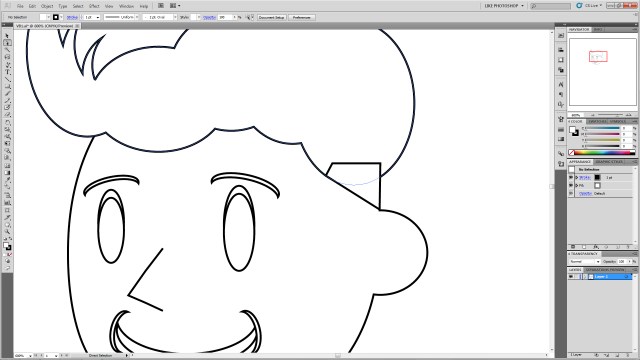
Using direct selection (again you may have to click each anchor point twice to make sure only the anchor is selected not the entire polygon) drag the points to the locations shown.
VB32

Step 27:

Select the “hair” shape and the newly-shaped polygon and join them using shape builder.  Feel free to resize or shape to create the look you’d like.

VB33

Step 28:

Create an ellipse in the location as shown and ctrl+left bracket ( [ ) key to send it to the back.

VB34

Step 29:

Selecting the new ellipse, Ctrl+c, ctrl+b to paste it and nudge it to the other side of the head.  You may wish to reposition it to give it the right angle.

VB35

Step 30:

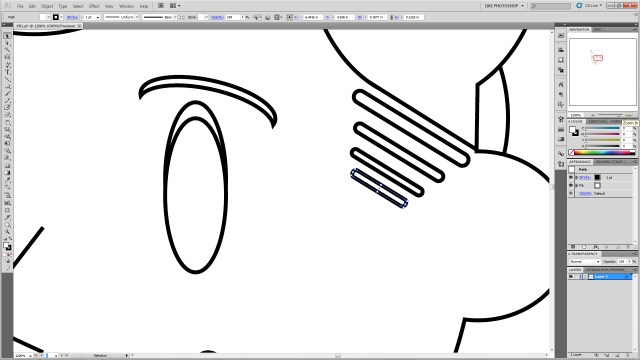
Create a rounded rectangle and free-transform resize it as shown.

VB36

Step 31:

Free transform rotate it so the angle matches the angle of the square you create for the hair.

VB37

Step 32:

Ctrl+c, ctrl+f to copy and paste it as many times as desired.  Shift+alt resize them to get them the correct size and move them into position as shown.  It may help to move them down and left or right with the arrow keys to keep them in line rather than moving them with the mouse.
VB38

Step 33:

Color your shapes as desired.  Select each shape and select a color from the swatches to give them the desired color!

VBColors

Step 34:

Create two overlapping white ellipses in the left (his left!) eye.

VB39

Step 35:

Selecting your new ellipses, ctrl+c, ctrl+b them then nudge them to the right (his right!) eye. Shift+alt resize them for perspective again.

VB40

There it is, you’ve created a legally-distinct Vault Boy-type character head!

As a bonus!

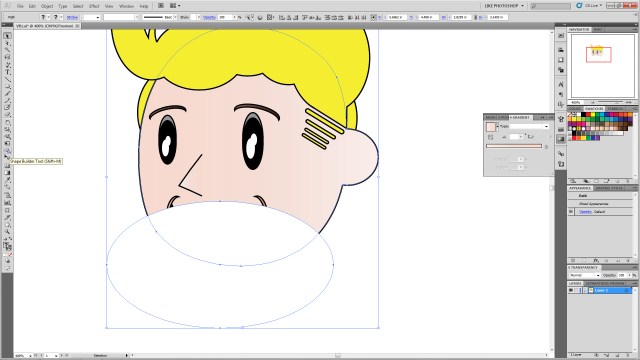
Want to give him a gruffer look?

Step1:

Overlap the face with another ellipse.
VBExtra1

Step 2:

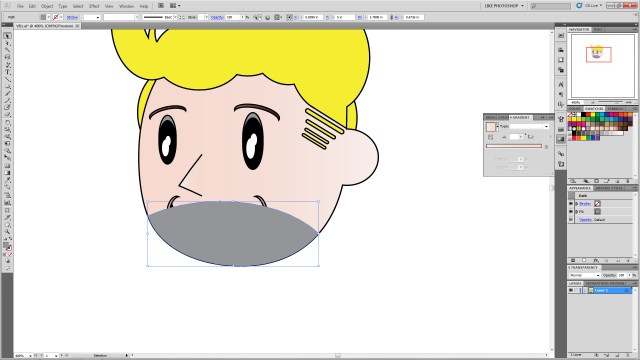
Select the head shape and new ellipse shape and use the shape builder tool and click+alt to erase the outside ellipse shape.

VBExtra2

VBExtra3

Step 3:

Recolor the ellipse any shade of gray, brown, etc.
VBExtra4

Step 4:

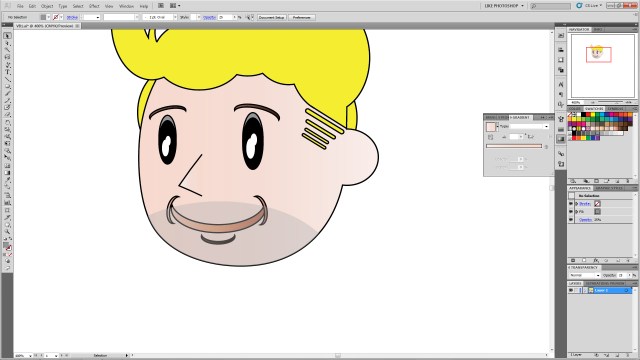
Change the opacity to the desired shade to give him a 5 o’clock shadow look!
VBExtra5

Lil Horsemen Original Art

Lil Horsemen Logo

Thanks to everyone who read RevPub’s very first publication, Lil Horsemen #1: How Death and War Postponed the Apocalypse.  I thought I’d share some of the art that went into the creation of the book.  All the character art was pencil-drawn and the first issue consisted of more than 55 individual character drawings and dozens of computer-rendered pieces.  Seeing as how this is a relatively simple story, it makes me wonder how my more ambitious stories will go!
Here are a couple of my favorites.  In the next couple of weeks, while I’m in the planning stages of Issue #2 I’ll post some more of my favorite original pencils from this issue.  I absolutely love the way the final issue came out, but I still like to look at the original pencils and see how it all started.
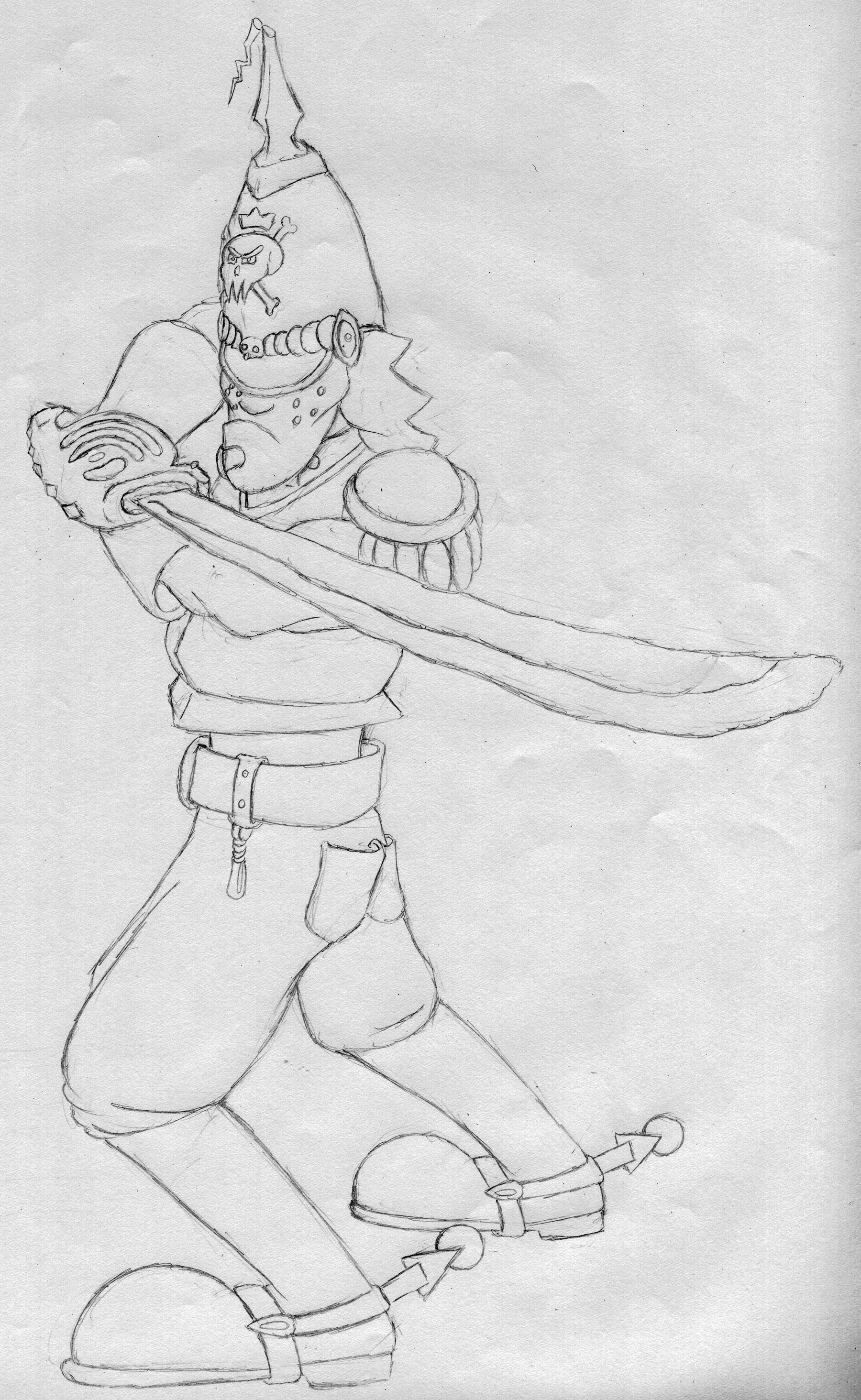
Skirmish ready for a fight!

Skirmish with Sword
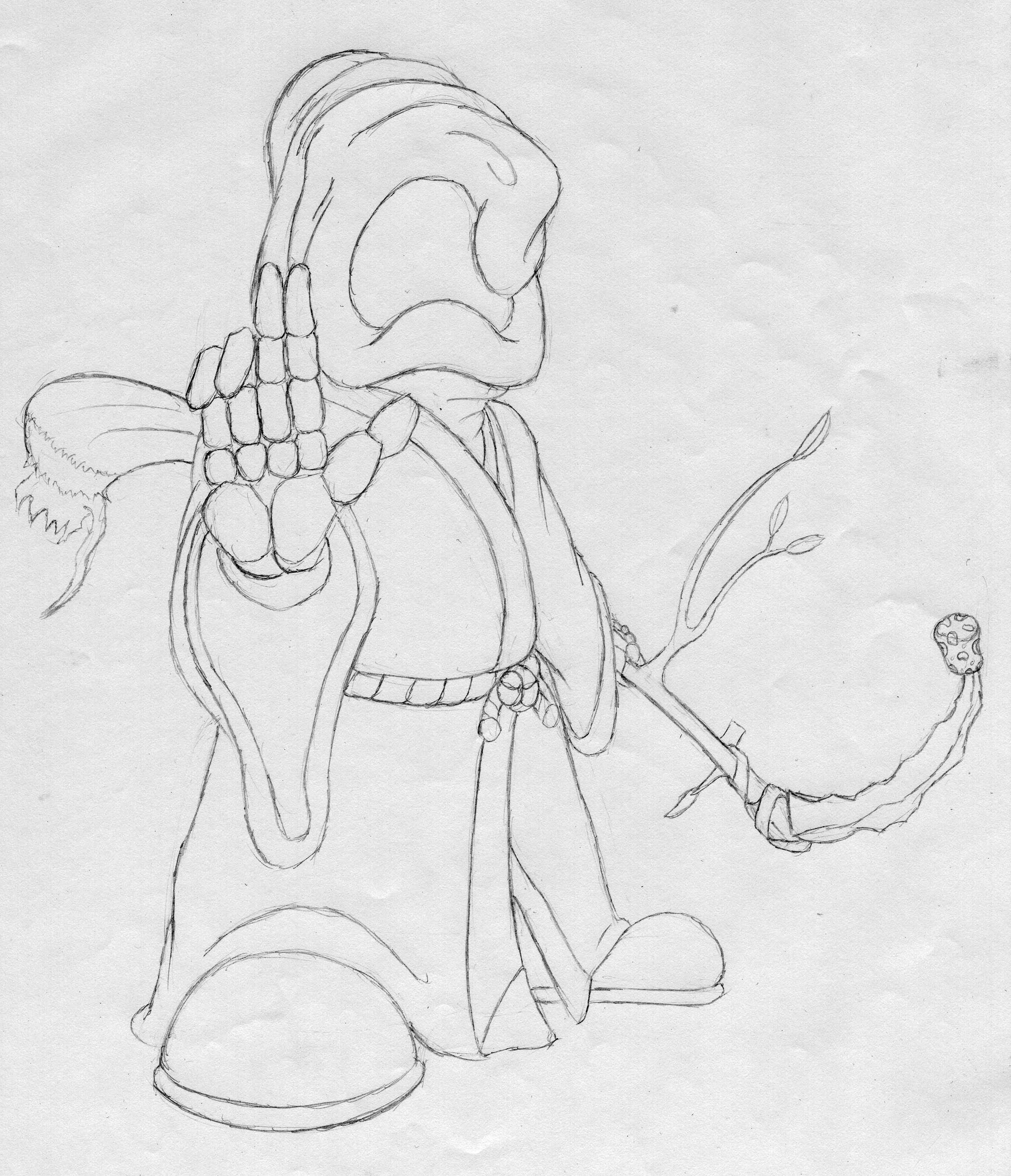
And Grimmy-Fu!

Grim Fu

Lil Horsemen #1: How Death and War Postponed the Apocalypse

The two team members of Revenant Publications are proud to present the FIRST issue of our FIRST official publication!
The interface allows you to zoom in, flip pages, and enjoy it better than if it was printed on full glossy paper!

Click Here for Issue 1

It was a great experience to produce this first issue, and I couldn’t have done it without, Raven Petty, my Revenant Publications partner.  Thanks for being my muse and motivation 🙂

And to…

Misty Bach

Brandon Combs

Kathy Lauder

Ron Peaks

Isaiah Petty

Joey Petty

Braxton Shoop

Todd Spainhour

Brad Trombley

Michael Wardlow

Zach West

…without your support and encouragement this project wouldn’t be what it was.

And to all our RevPub readers.  I hope this is the beginning of great things!

Off the Top of My Head #4: The Unconventional Wit and Wisdom of Karl Pilkington

Off The Top of My Head

Genius is an objective concept.  What might seem like genius to one person may seem absolutely ridiculous to another.  What might seem simplistic may be brilliant.  What is absurd and what is genius can be blurred by perspective and not all of us agree on what is profound and what is nonsense.

Enter Karl Pilkington.

Karl Pilkington

A friend at work told me about the show Idiot Abroad and frankly due to the title and my lack of interest in the concept I resisted watching it.  I since have seen the show, The Ricky Gervais Show HBO episodes, and read two of Karl’s books.  Despite what Ricky Gervais believes, I think Karl is a kind of genius (which according to Ricky makes me an idiot too…), but like Ricky…I can’t get enough of his peculiar form of brilliant insanity.  I’ve included several of videos featuring Karl in this post.  All are hilarious, but be aware there is some  typical Ricky Gervais-language in them.

For those who don’t know him, Karl Pilkington was a radio producer on Ricky Gervais and Stephen Merchant’s radio show.  They found his unique outlook and simplistic views on things to be so entertaining they have since put him in their podcasts and twice sent him around the world.

Ricky refers to Karl as a “moron, he is a round, empty-headed chimp-like, mank moron.  Buffoon.  Idiot…but absolutely lovable.”  Stephen Merchant states Karl is, “Some kind of real-life Homer Simpson…small minded, petty, but at his core a  good person.”

I find Karl to be rather more intellectual and philosophical than idiotic; albeit in quite an unconventional way.  Karl can ponder the functions of the human mind, the future, and discuss the nature of virtual life vs. real life.  At the same time he believes dolphins with rifles escaped during Hurricane Katrina; that longer days on Mars are the cause for Martian technological advancement; and that monkeys can steal cars, serve as doctors, and fly spaceships via training with a banana chute.

Hearing Karl’s unconventional and sometimes seemingly mad ideas (like population control could be accomplished by having old women give birth to the next generation right before they die) it’s easy to jump to the conclusion that he is an idiot as Ricky describes.  To me, despite his sometimes pessimistic tendencies, he seems to think with a positive attitude, meaning when he finds a story that interests him he doesn’t come at it from a perspective of, “this can’t be true.”  Instead he comes at it from the angle, “why can’t this be true?”  He approaches the stories he reads with a certain level of naivety, accepting what is presented simply because he “read it.”  This can lead him to very unusual conclusions, and it doesn’t help that even legitimate stories he reads get, as Karl would say, “bungled in” with other stories and facts (like Mt. Everest growing and a piano being found on top of it.)  I find his willingness to accept unrealistic concepts as refreshing and creative (even if he doesn’t always see it as creativity).  Also, as he says when he selects a dictionary as the book he’d most want to bring to a desert island, he isn’t always able to express his thoughts in the clearest way.  I know I’ve been there, so I identify with him when he struggles to put his thoughts into words.

His views are also completely void of vitriol or malice.  When he talks about unusual people (he calls them all “freaks”), other cultures, poetry, and vacationing in other countries he doesn’t express a hateful opinion just his honest one.  I actually prefer his honest, yet sometimes ignorant, perspective far more than the crowd-pleasing, phony, politically correct beliefs we see from most pundits.

It’s like Karl lives in his own world, and that would be a fascinating place to be…

If you are unfamiliar with Karl, look him up on the internet and/or get a copy of The Ricky Gervais Show on podcast or video.  Even if you don’t think he’s a modern day philosopher (as I do!) you’re bound to laugh at his antics.

My next post will be a review of the first season of Karl’s travel program, An Idiot Abroad.  A terrific show that puts an unconventional man in unfamiliar surroundings and hilarity ensues.  For now, enjoy this, one of my favorite videos!

And check out Karl’s official site here!

Lil’ Horsemen Update!

Lil Horsemen Logo

I mentioned in my post way back on May 22 and again on June 6 that Revenant Publications’ first actual publication would be based on the Lil Horsemen of the Apocalypse concept I created back in 1998 (first story in 1996 now that I think of it…)  I thought now would be a good time to update everyone on our progress.  To date ALL principle artwork is complete!  This was some 58+ individual hand drawings I did in the intervening time between the project’s announcement and now.  Also, more than a dozen background landscapes and interiors were created.  The fairer-half of RevPub did a wonderful job inking all my pencils and I’m now ten pages in to the process of doing page layouts for the finished publication (which I’m now believing will be between 25-35 pages depending on how layouts end up).  There are still a few stages to go but it is pretty much on schedule and will be coming to a RevPub post soon!

This is my first real publication project and, even though it’s being produced entirely in-house from the hard work of the two RevPub partners, it is an incredible rush to see these characters who, as of yet, lived only in my head with my other series’ characters and my multiple personalities.  It’s been an eye-opener to work on it, one of those “this may actually be something I could enjoy doing for the rest of my life” projects.

So it will be coming soon and I just hope it’ll be as entertaining to read as it has been to produce.

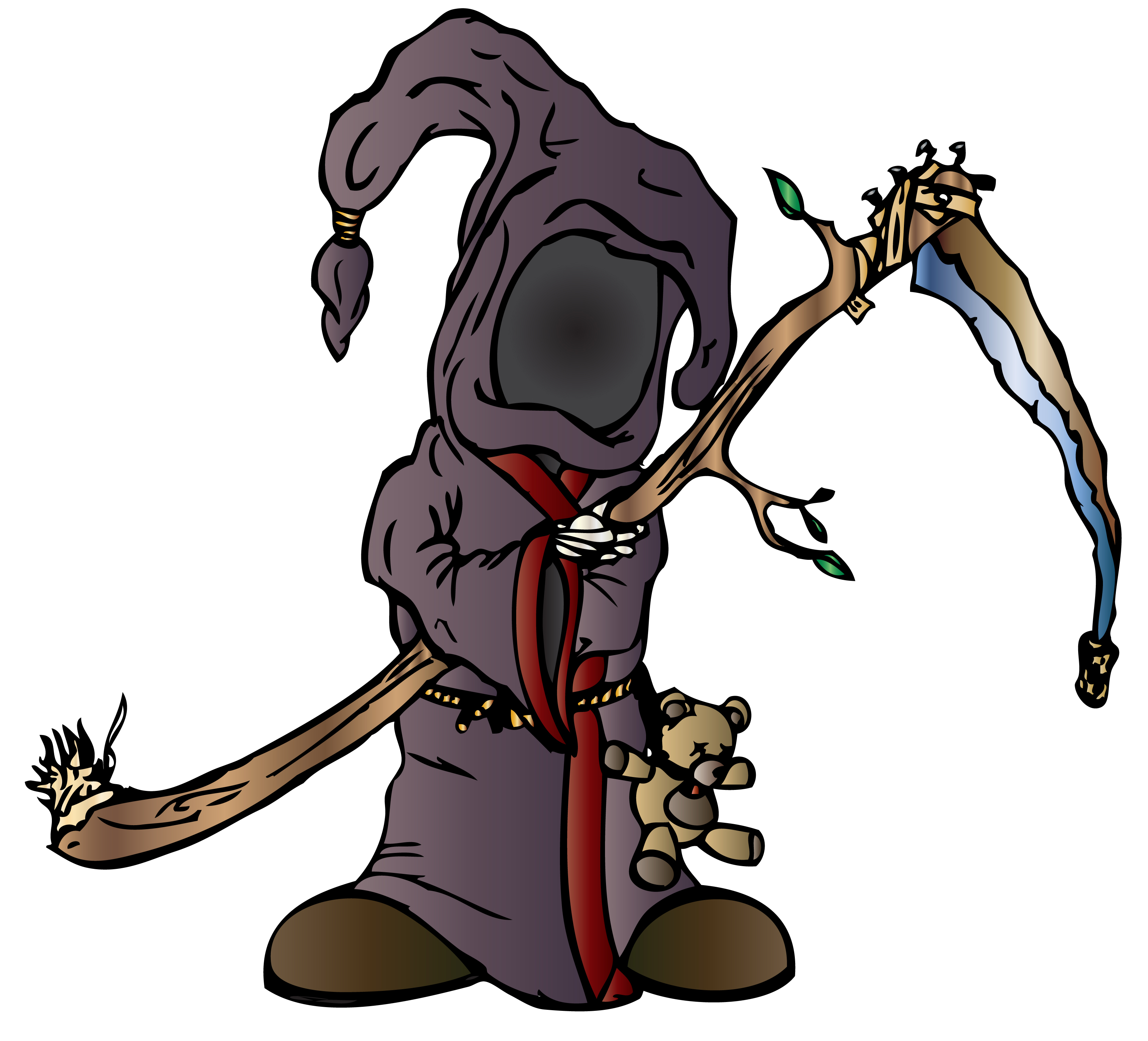
Lil Grimmy Reaper Color Test
Grimmy is waiting patiently!
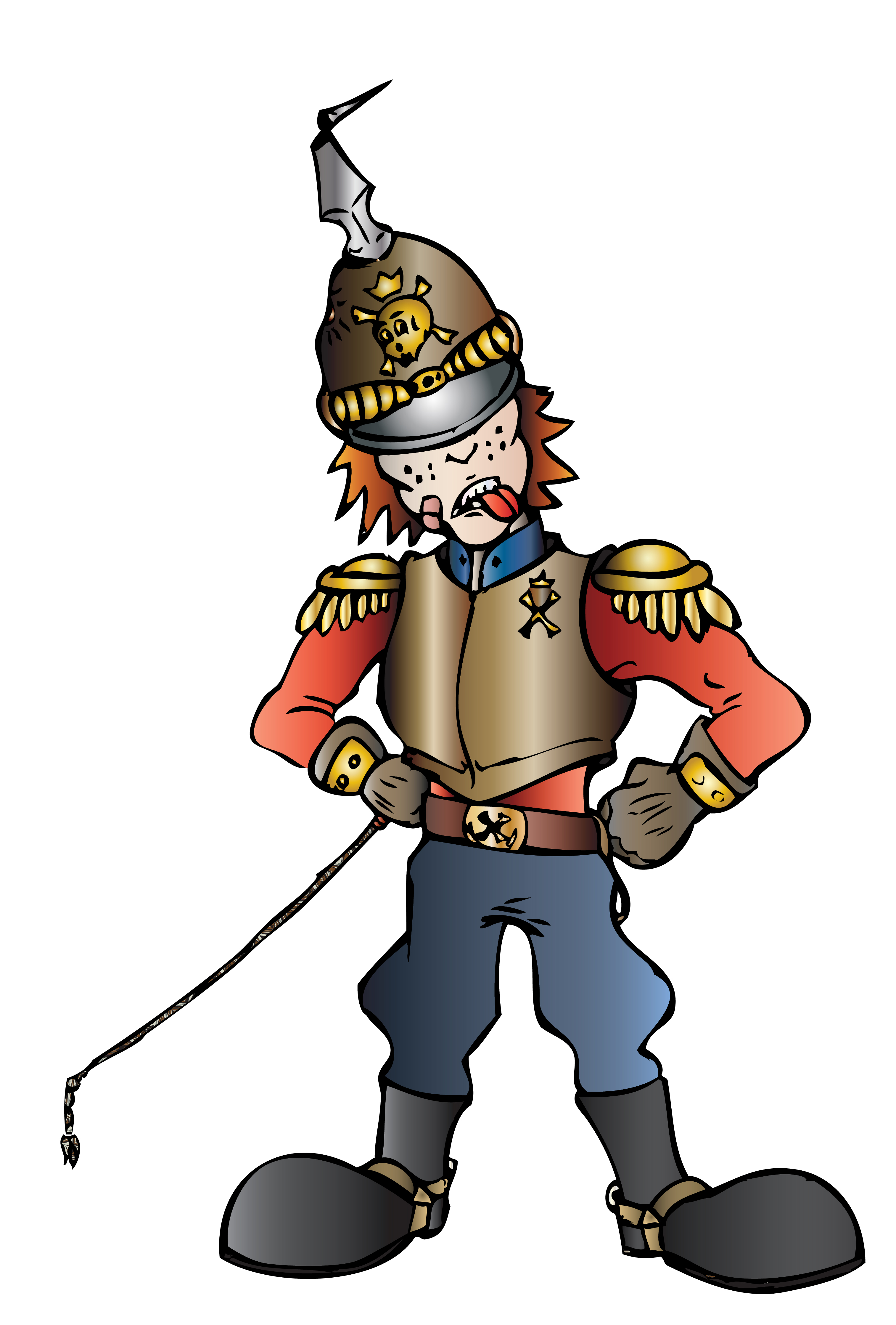
Skirmish
Skirmish is waiting impatiently…

Stay Tuned

Off the Top of My Head #3: How I Spent My Summer Vacation, Painting and the Balrog of Moria

Off The Top of My Head

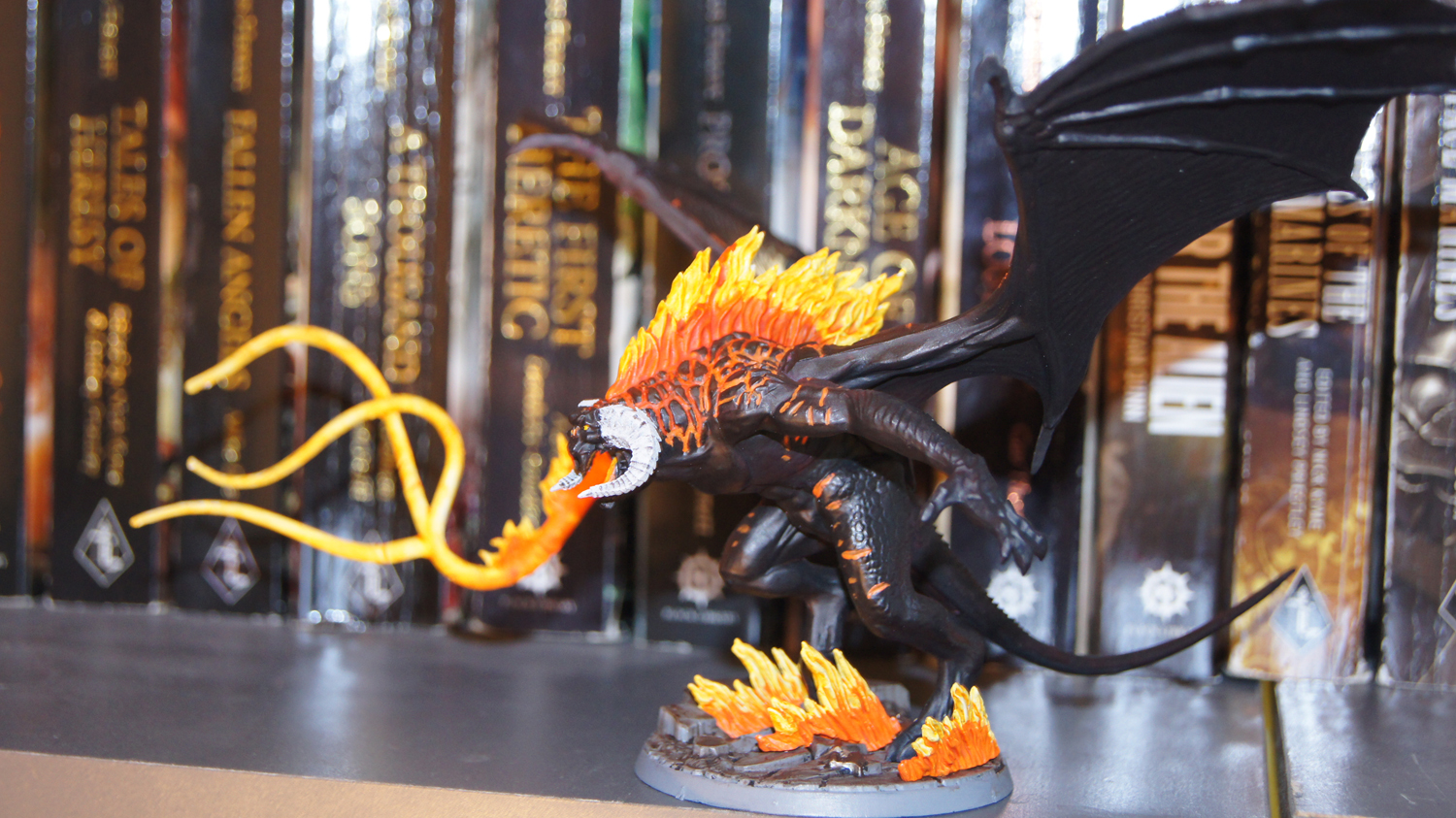
I posted in my second “Off the Top of my Head” some of the 40k figures I painted.  While I started painting with the five “came with the paint set” marines, the second model I painted wasn’t a Black Reach Ork but a Games Workshop, Citadel Balrog of Moria.  I love the Lord of the Rings movies, but I don’t have much interest in the game (I like the grim darkness of the 41st millennium).  This model was given to me by a friend I work with.  His son loves the Lord of the Rings figures.  He found this particular to be a little too advanced for him and offered it to me as a thank you for locating some hard-to-find movies and toys online (he calls me “the finder of lost items”).  The weekend before my vacation I decided on a weapon for the Balrog, primered him, glued him and started painting him.

After painting it I decided, since I don’t collect the LOTR figures, I would return it to the young man who gave it to me.  He was very happy to get the completed Balrog back and I received the ultimate kid compliment for my work: I was invited over to view his collection of Lord of the Rings miniatures and play video games.  I take it as high praise!

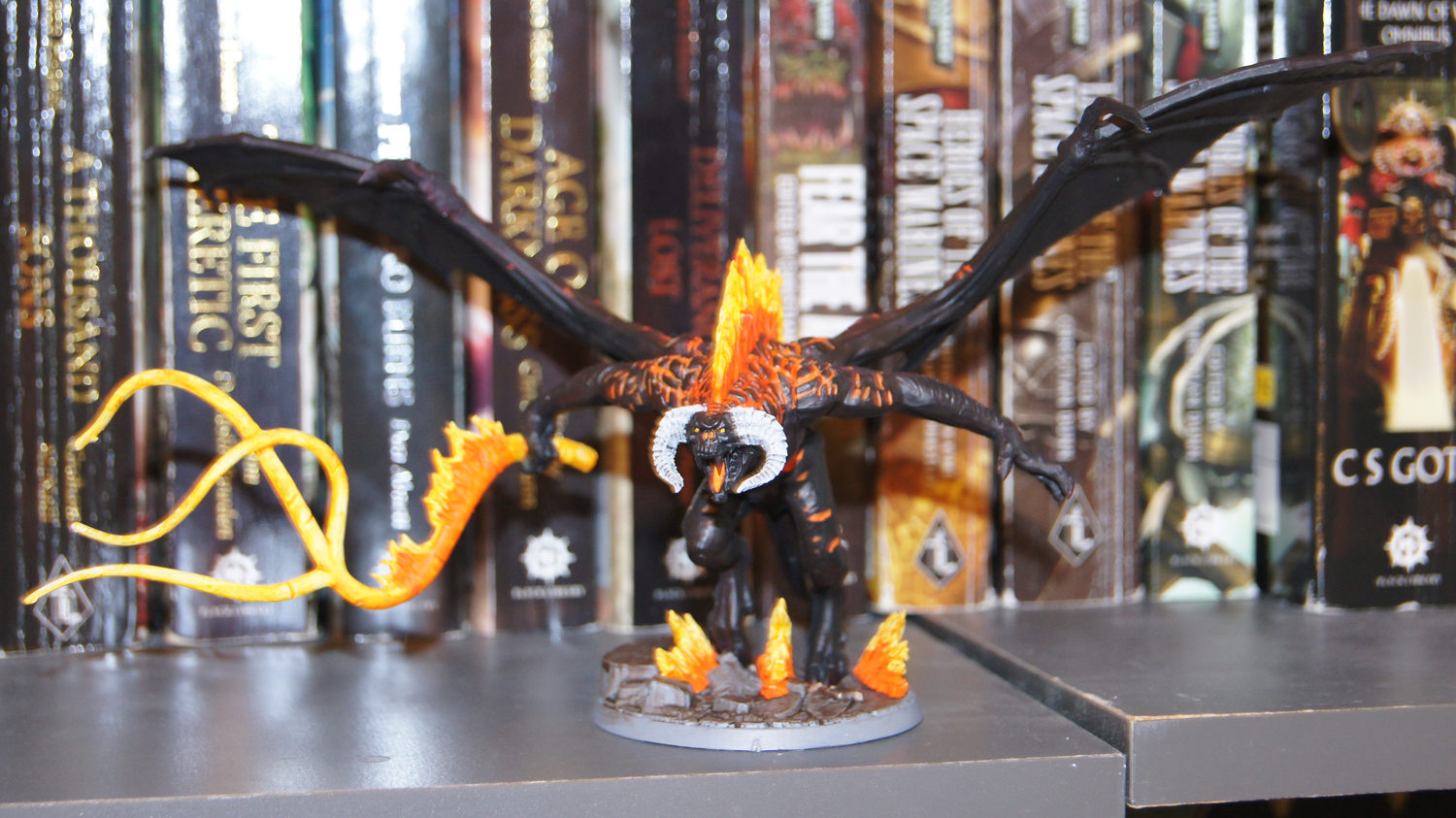
Barlrog Full
My Balrog. Chaos Black primer, washed all over in old Baal Red, then the fire parts were painted white and washed in Casandora Yellow. I used some Troll Slayer Orange for the darker fire parts and washed it in Bloodletter Glaze
Balrog Right
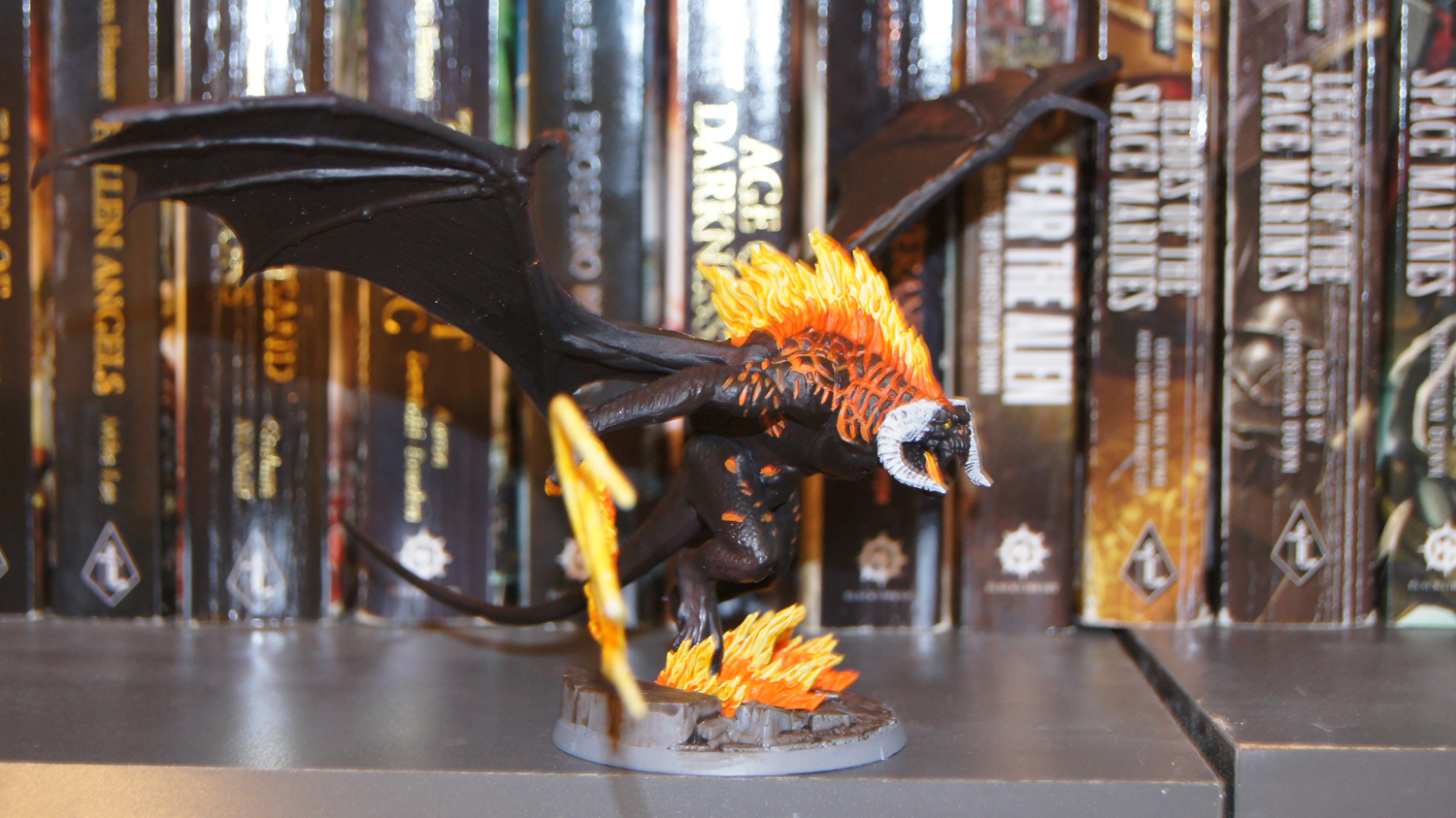
Full Balrog from the right. The whip used the same technique as the fire, painted white then washed in yellow with orange details glazed in red.
Balrog Left
Balrog from the left.  My Horus Heresy and 40k books made a good backdrop.
Balrog Base 1
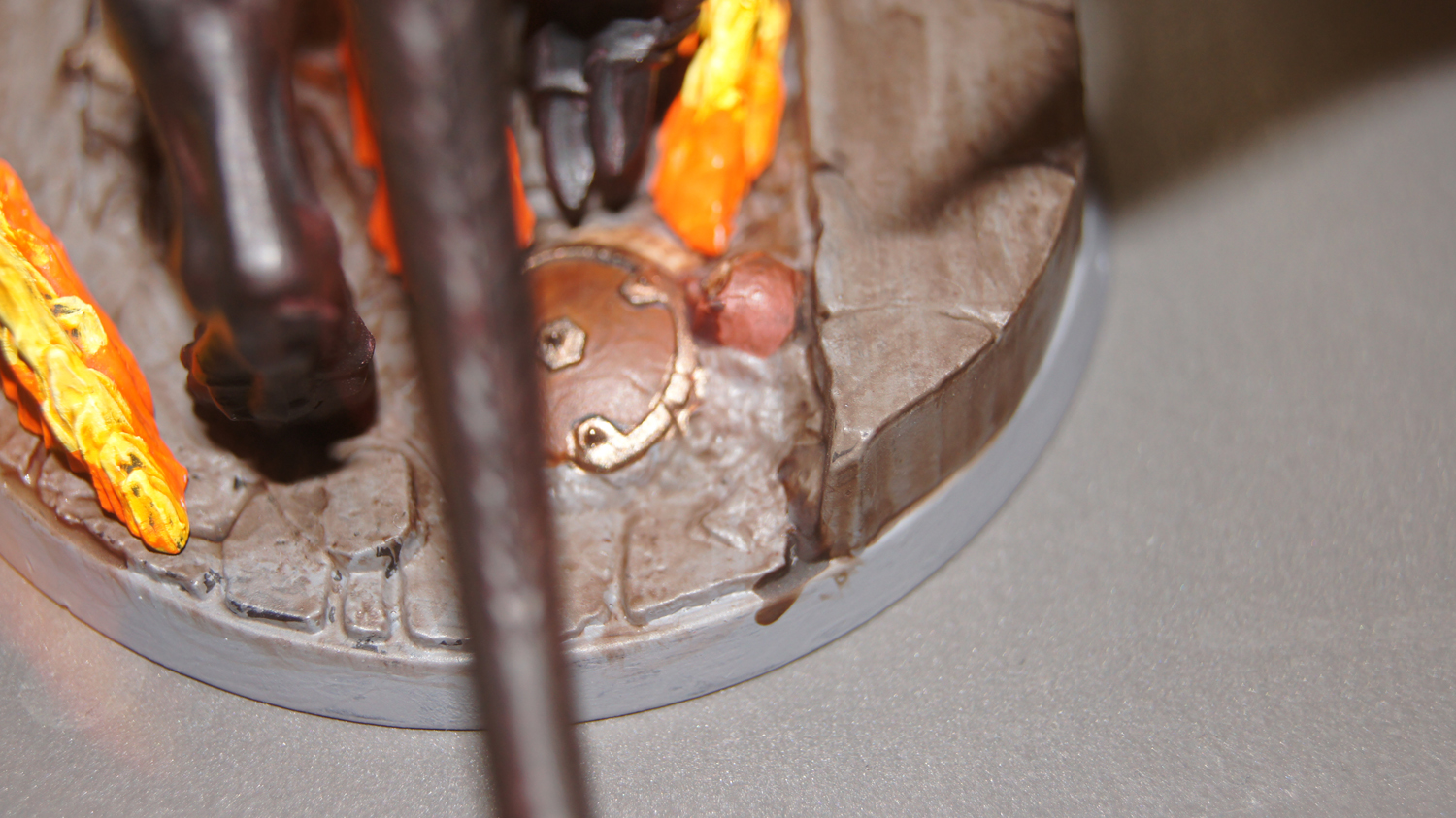
The base was the most fun to paint. I liked the detail of the skeleton in armor with an axe. I painted it Runelord Brass, Moonfang Brown, Bugman’s Glow, and Screaming Skull then washed the whole thing in Earthshade.
Balrog Base 2
Base of the Balrog showing the bony hand with axe.  I didn’t put the orange detail on the Balrog’s arms.  I probably should have but I was eager to get to that 40k army!
Balrog's Face
The face of the Balrog. His horns are drybrushed with Praxeti White.