An Illustrator’s Foray into Adobe Illustrator – Week 6

This will be the last one of these as the rest of my Illustrator education will now be appearing in RevPub’s creative projects.  These two tutorials I did in April and related to tracing and coloring in Illustrator.  These are nice lessons, especially good at teaching how to work from images created outside of Illustrator, first using the pen tool, and second using the blob brush and a pen tablet.

Since I didn’t feel like staring at pictures of myself while I learned this and I didn’t want to license any photos I used a couple of pictures of the far more photogenic half of RevPub to try these out.  She makes for a nice cartoon!

This is the first one.  This was appealing as it had a more stylized look, used only Illustrator tools, and provided a simple (but eye catching and dramatic) style:

http://ndesign-studio.com/tutorials/tracing-photo

Raven
The highly contrasted tutorial made this picture look even more eye-catching.

This was the first time I tried this technique and it was effective and has helped immensely with my own work.  Starting with a complicated photograph you definitely don’t want to do any artistic injustice to raised the bar for the work, but it’s made the simple illustrations I do far easier in retrospect.  Honestly I haven’t used this specific technique frequently but it was very effective at teaching the tools needed to create more advanced artwork, especially from photographs or scanned drawings.

The second one was more natural for me as it used the pen tablet.  The pen tablet is still a tricky device for me.  I need to see the marks coming out of the pen to be effective but I’m slowly learning to use it.

http://vectips.com/tutorials/create-a-grisly-zombie-illustration-with-a-pen-tablet/

This tutorial was actually to teach you how to zombify a person, but I thought I’d use the skills taught in the tutorial just to do the basics first (zombies to come later of course…)  This one came better than I expected and taught how to color using the Live Paint Bucket (a tool I didn’t know about that BLEW MY MIND).

Here’s my second tutorial result:

Raven Trace
She was posing in a Halloween costume but I love the expressiveness of this picture and it’s a great smile. It was perfect for tracing and coloring.

These two tutorials, mixed with the others I’ve posted, have really taken me from “What the-?” in Illustrator to creation of my own artwork using multiple layers and tools.  I’m by no means a master in the software, or even professionally proficient, but my knowledge of the software has vastly improved in just a few weeks using the infinite power of the World Wide Webs (or “Internets” if you prefer).  I should write Google a thank you card.

I hope everyone has found these tutorials useful too.  My next Illustrator posts will be things to look forward to in RevPub’s first official “pub” Lil’ Horsemen, which, barring some unforeseen hold-up, is coming Summer-Fall 2012!
Things to come! – A Tiny Preview of “Lil’ Horsemen”

Big things are in the works at Revenant Publications.  Or medium-sized to big things at least.  Anyone who saw the Lil Grimmy Reaper & Skirmish post from May 22nd will know the direction we’re headed, and anyone who’s been keeping up with the “Illustrator’s Foray” posts know I’ve been learning the software in a Google+YouTube taught accelerated fashion.  I’ve got a couple more tutorials I’ve found (showing various trace and coloring tools) coming up that have helped me immensely, but until then I thought a taste of things to come would be a nice teaser.

I’ve been writing and planning no fewer than three comic series of various sizes, scopes, and complexity since middle school (yeah…s’been a while…) and I’m just now, with the motivation provided by the fairer-half of RevPub, on the cusp of publishing the first one, which will premiere on revenantpublications.com hopefully toward the end of summer or beginning of fall.  It’s the first time since I’ve started working on them that I really feel like this will happen and it’s the most exciting creative rush I think I’ve ever had.  It’s one thing to have ideas…it’s completely different to actually see your plans, writing, and concepts start to come together.  Starting with the project of the least complexity, but potentially the most charm, we’re preparing to publish the graphic novelization of a concept that started with a little story written for sophomore English class in 1996 and came to maturity as a short story I wrote in creative writing class as a high school senior in 1998.   This will eventually (hopefully) spread into a simple-paneled comic series published to RevPub with some regularity.

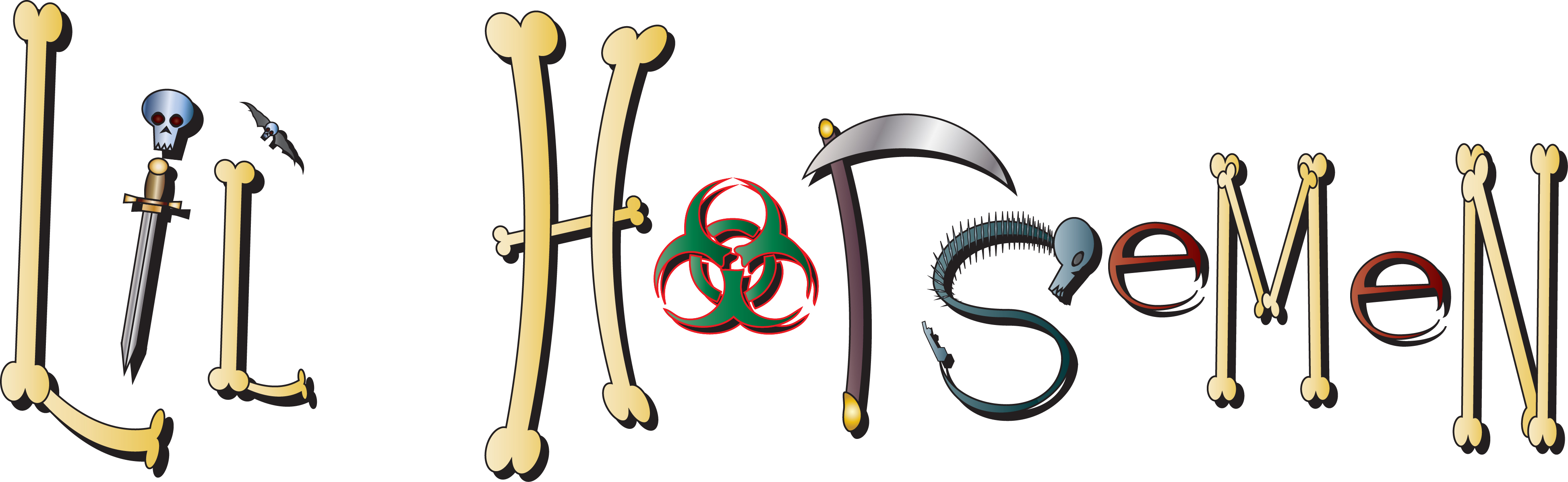
I give you the Lil’ Horsemen logo, as designed in Illustrator using all the tools I’ve learned and figured out on my own over the past two months:

Lil Horsemen
All the Lil Horsemen are represented in the logo! Including them all was harder than it might seem…

As was mentioned in the May 22nd post. I think of it as”Muppet Babies in Hell” and follows the adventures of the Little Four Horsemen of the Apocalypse, the youngest children of the real Four Horsemen.  It’s a fun, grim series and will hopefully be a taste of more great things to come from Revenant Publications!

Stay tuned!

Stay Tuned

“Lil” Grimmy Reaper & Skirmish

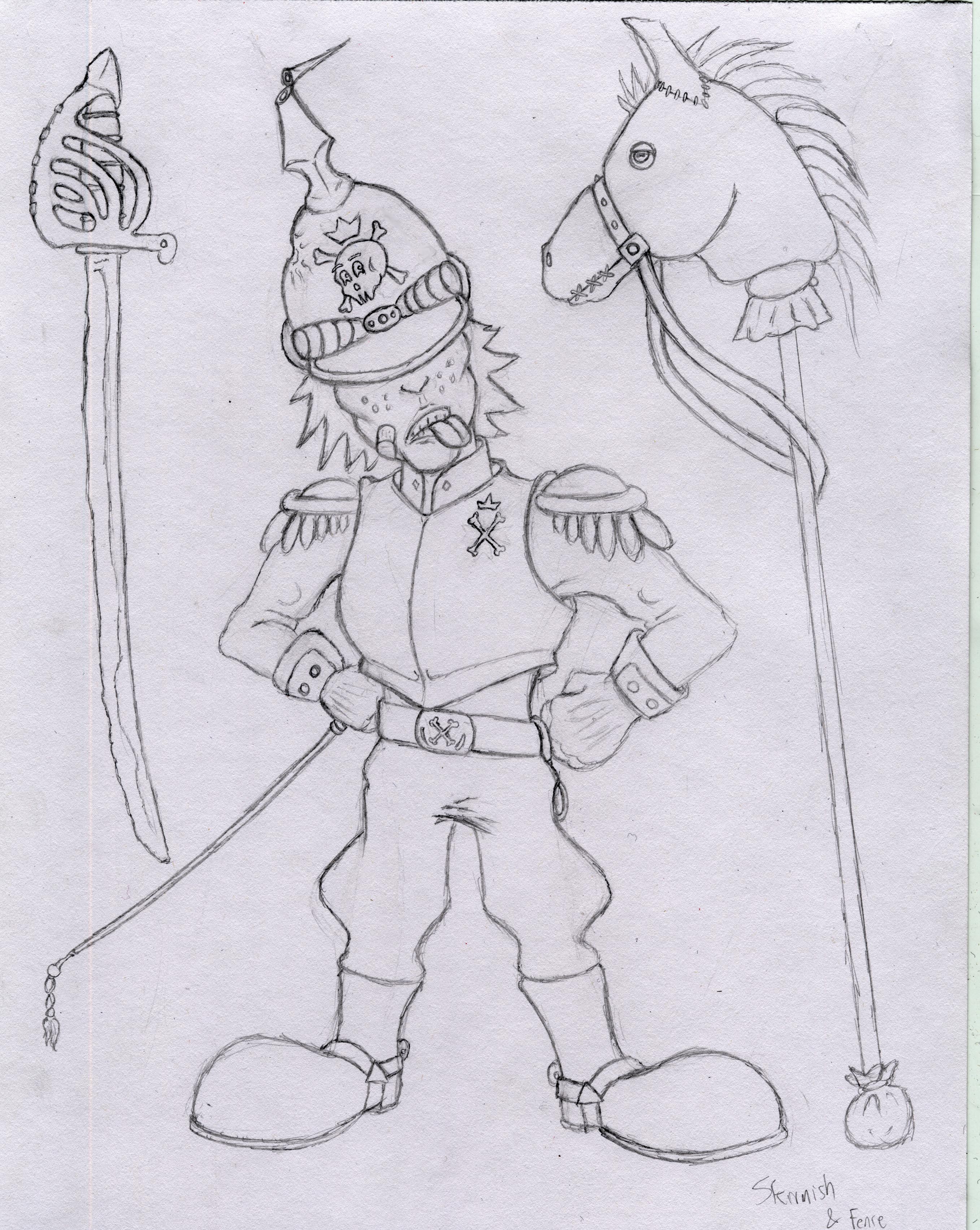
In the “Coming Soon” category (sometime in the future) is a continuing series based on characters and a world I created in 1998 for a creative writing class in High School, the world of the Lil Horsemen.  It’s like Muppet Babies…but in Hell…  (In case you were wondering the assignment was “A children’s story that teaches a lesson”)

Copyright Revenant Pulications 1998

Above: Lil Grimmy Reaper, youngest son of Death, and his favorite stuffed toy Ded Bär.

Below: Skirmish von Grossenkreeg, youngest son of War, and his mighty steed, “Fence.”

Copyright Revenant Publications 1998

Coming Soon the remaining two horsemen, Smally Pox and Anna Rexa.  Stayed tuned to see their adventures!

An Illustrator’s Foray into Adobe Illustrator – Week 5

During my Illustrator tutorial spree I’ve learned a lot about how shapes and gradients can be used to make objects, textures, and even characters come to life as vector art.  While I’d never say I’ve been 100% converted to the superiority of digital techniques over traditional pencil and paper, I can certainly see the benefits of using digital methods to enhance hand-drawn artwork or to produce specific kinds of images for specific purposes.  My day of hand drawing and scanning logos, backgrounds, and simple objects to fill surroundings are certainly over.

Creating textures is still tricky and the next tutorials I undertake (after taking a bit of a tutorial break…) will be all about my artistic Achilles’ heel…coloring.  To get that ball rolling and still keep a foot in the basic shapes n’ gradients territory I found this tutorial that teaches how to make a nice water ripple texture:

http://vector.tutsplus.com/tutorials/designing/create-a-cool-water-ripple-effect/
This one combined many different tools, like the previous posting, to create a basic shape of a water ripple.  It was more complex (for me at least) because it added perspective (creating an oblong ellipse to simulate a horizontal circular surface) and added the use of a gradient mesh tool, which I still have yet to figure out…  But it worked very well for this tutorial.  It also displayed how to effectively use color, using black, white, and various shades of blue to give depth to the water.  Everyone’s water drop+ripple will be different and here’s the look of mine:

Next week I’ll be taking a bit of a break from tutorials and starting a new recurring series of lessons I learned from a lifetime of gaming, from the 80s through current generation.  It’ll be a fun diversion and something that is much needed…video games can be good for you!  But fear not, there is more Illustrator progress coming.  And all my fellow newbie digital designers and I can continue to unsolved the mysteries locked away in Adobe Illustrator!

An Illustrator’s Foray into Adobe Illustrator – Week 4

Shapes can show emotions too.  Really.

Seeing shapes is how illustration begins, especially in Illustrator, but using shapes to create something with personality is a different level.  I could gladly live in a world of inanimate sharpened objects and smooth, perfect polygons all day (they are rarely annoying and frequently useful) however living such a life, even in artwork, would be kind of a drag.  So I sought ways to turn shapes into characters.  In doing so I stumbled across this site, which has been a wonderful resource of Illustrator tutorials:

http://vectips.com/

Not all of them are perfect and some of the instructions can be a little vague, especially if you like to go through tutorials in a “I get the gist” kind of way and skip ahead…you’ll be doing a LOT of ctrl+z…read all the steps…seriously…

This tutorial was by far my favorite on the site as it had the most to do with my kind of illustration and it allowed some real creativity to burst forth:

http://vectips.com/tutorials/create-a-happy-sun-character/

This is a little surprising given my penchant for the macabre but seeing all of the steps needed to create this character; all of the tools used; the various effects, gradients, and polygons combined and altered to turn simple shapes into an expressive character was truly entertaining.  It also allowed for a significant amount of learning-while-doing that sticks with me because of the fun I had making the lil sun guy.  Here’s my result of the tutorial:

I love this guy. From his dilated eyes to his gap-tooth smile. Just love him. Don’t know why.

And because I’d rather be howling at the moon that funning in the sun I created this original piece using the steps and tools in the tutorial:

I hate to be overly proud of myself (not really) but I was really fond of how this moon came out. I like him even more than the sun.

Hopefully all of these sphere tutorials have been as enlightening for other Illustrator neophytes as they were for me.  Next week will be one last shape tutorial I found that includes shapes and textures used to make a dramatic and slick-looking graphic…even if it’s not as personable as a happy sun character it’ll be something to look forward to!

An Illustrator’s Foray into Adobe Illustrator – Week 3

More spheres!  Admittedly working all of these tutorials was pretty addictive and once I started learning how to use Illustrator’s various functions it was hard to stop seeking out new applications to learn.

After designing the previous sphere, which was of course simply a circle shaded to resemble a 3D object, I became curious about the rendering capabilities of Illustrator.  While cruising the forums the rendering features are often discussed and, much like pathfinder tools, which can be a little confusing for beginners like me, the 3D rendering feature feels inaccessible.

My first attempt to create something in 3D without instructions was a sphere, what could be simpler than a circle, right?  So I created an ellipse and tried a few of the 3D options, creating a cylinder, a disc, and finally this thing:

The Great Black Oil Donut

I clearly needed some assistance with this feature and while searching for “How to Create Spheres” I found another tutorial that showed, as an element of the exercise, how to create 3D spheres.  Once you see how it’s done it feels a little less psychotic than all the random shapes you can create just trying to make a polygon a 3D polygon.  The tutorial taught how to make a “peel effect” which is similar to the AT&T logo of a shape wrapped around an invisible sphere.

The tutorial:

http://www.tutorialsbucket.com/peel-effect-in-adobe-illustrator-cs5

Not only does this teach how to make 3D spheres using the rendering tools, but how to repeat graphic shapes using transform, how to create symbols, and of course how to apply the symbols to make the peel effect.

During one of the steps it shows how to easily create a 3D rendered sphere like this:

Sphere!
My first sphere rendered in 3D.

It was one of my favorite basic illustrator tutorials.  It was very easy to follow and provided clear steps in the multiple tools used to create the graphic.  Also it teaches by osmosis several other useful tools and finally hammered into my analog brain how digital 3D rendering works. I used it to create the peel effect he shows:

I admit when it worked I did say aloud, “What the…that actually worked!”

One slightly more difficult one of my own:

It was just an attempt to apply the rectangles in an overlapping fashion but it came out looking a bit like a Christmas tree ornament. It let me try the process one more time though!

And then combined it with what I learned in the previous tutorials to create this original graphic inspired by the wonderful, colorful, world of James Rolfe’s AVGN:

Yes, ladies and gentlemen, it is…an F-Bomb… And I think the Nerd would approve since it looks like a Nintendo 64 graphic.

The above graphic was created using the 3D rendering sphere technique learned in the tutorial from this week; the cylinders I created by accident using “bevel and extrude” trying to create spheres before I learned how to do it properly; radial gradient shading learned from last week’s tutorial; and the pen tool (which I accidentally left on the gradient fill and made a nice fire effect).  It goes to show, once you learn enough to operate properly, classic trial-and-error methodology still has skills it can impart…and that feels like a Mr. Miyagi-level lesson.

Next week is the last tutorial about making spheres and how they’re used to create textures and even characters.  I’m sure there are plenty of other ways to use the 3D rendering tool so feel free to share creative ways to use them.  To quote Bender Bending Rrrrrodriguez: Learning is fun.

The inspiration for the F-Bomb:

Support James Rolfe and the AVGN Movie at Cinemassacre.com!