During my Illustrator tutorial spree I’ve learned a lot about how shapes and gradients can be used to make objects, textures, and even characters come to life as vector art. While I’d never say I’ve been 100% converted to the superiority of digital techniques over traditional pencil and paper, I can certainly see the benefits of using digital methods to enhance hand-drawn artwork or to produce specific kinds of images for specific purposes. My day of hand drawing and scanning logos, backgrounds, and simple objects to fill surroundings are certainly over.
Creating textures is still tricky and the next tutorials I undertake (after taking a bit of a tutorial break…) will be all about my artistic Achilles’ heel…coloring. To get that ball rolling and still keep a foot in the basic shapes n’ gradients territory I found this tutorial that teaches how to make a nice water ripple texture:
http://vector.tutsplus.com/tutorials/designing/create-a-cool-water-ripple-effect/
This one combined many different tools, like the previous posting, to create a basic shape of a water ripple. It was more complex (for me at least) because it added perspective (creating an oblong ellipse to simulate a horizontal circular surface) and added the use of a gradient mesh tool, which I still have yet to figure out… But it worked very well for this tutorial. It also displayed how to effectively use color, using black, white, and various shades of blue to give depth to the water. Everyone’s water drop+ripple will be different and here’s the look of mine:
Next week I’ll be taking a bit of a break from tutorials and starting a new recurring series of lessons I learned from a lifetime of gaming, from the 80s through current generation. It’ll be a fun diversion and something that is much needed…video games can be good for you! But fear not, there is more Illustrator progress coming. And all my fellow newbie digital designers and I can continue to unsolved the mysteries locked away in Adobe Illustrator!
Seeing shapes is how illustration begins, especially in Illustrator, but using shapes to create something with personality is a different level. I could gladly live in a world of inanimate sharpened objects and smooth, perfect polygons all day (they are rarely annoying and frequently useful) however living such a life, even in artwork, would be kind of a drag. So I sought ways to turn shapes into characters. In doing so I stumbled across this site, which has been a wonderful resource of Illustrator tutorials:
Not all of them are perfect and some of the instructions can be a little vague, especially if you like to go through tutorials in a “I get the gist” kind of way and skip ahead…you’ll be doing a LOT of ctrl+z…read all the steps…seriously…
This tutorial was by far my favorite on the site as it had the most to do with my kind of illustration and it allowed some real creativity to burst forth:
This is a little surprising given my penchant for the macabre but seeing all of the steps needed to create this character; all of the tools used; the various effects, gradients, and polygons combined and altered to turn simple shapes into an expressive character was truly entertaining. It also allowed for a significant amount of learning-while-doing that sticks with me because of the fun I had making the lil sun guy. Here’s my result of the tutorial:
I love this guy. From his dilated eyes to his gap-tooth smile. Just love him. Don’t know why.
And because I’d rather be howling at the moon that funning in the sun I created this original piece using the steps and tools in the tutorial:
I hate to be overly proud of myself (not really) but I was really fond of how this moon came out. I like him even more than the sun.
Hopefully all of these sphere tutorials have been as enlightening for other Illustrator neophytes as they were for me. Next week will be one last shape tutorial I found that includes shapes and textures used to make a dramatic and slick-looking graphic…even if it’s not as personable as a happy sun character it’ll be something to look forward to!
More spheres! Admittedly working all of these tutorials was pretty addictive and once I started learning how to use Illustrator’s various functions it was hard to stop seeking out new applications to learn.
After designing the previous sphere, which was of course simply a circle shaded to resemble a 3D object, I became curious about the rendering capabilities of Illustrator. While cruising the forums the rendering features are often discussed and, much like pathfinder tools, which can be a little confusing for beginners like me, the 3D rendering feature feels inaccessible.
My first attempt to create something in 3D without instructions was a sphere, what could be simpler than a circle, right? So I created an ellipse and tried a few of the 3D options, creating a cylinder, a disc, and finally this thing:
The Great Black Oil Donut
I clearly needed some assistance with this feature and while searching for “How to Create Spheres” I found another tutorial that showed, as an element of the exercise, how to create 3D spheres. Once you see how it’s done it feels a little less psychotic than all the random shapes you can create just trying to make a polygon a 3D polygon. The tutorial taught how to make a “peel effect” which is similar to the AT&T logo of a shape wrapped around an invisible sphere.
Not only does this teach how to make 3D spheres using the rendering tools, but how to repeat graphic shapes using transform, how to create symbols, and of course how to apply the symbols to make the peel effect.
During one of the steps it shows how to easily create a 3D rendered sphere like this:
My first sphere rendered in 3D.
It was one of my favorite basic illustrator tutorials. It was very easy to follow and provided clear steps in the multiple tools used to create the graphic. Also it teaches by osmosis several other useful tools and finally hammered into my analog brain how digital 3D rendering works. I used it to create the peel effect he shows:
I admit when it worked I did say aloud, “What the…that actually worked!”
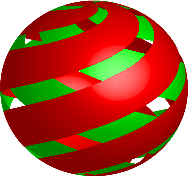
One slightly more difficult one of my own:
It was just an attempt to apply the rectangles in an overlapping fashion but it came out looking a bit like a Christmas tree ornament. It let me try the process one more time though!
And then combined it with what I learned in the previous tutorials to create this original graphic inspired by the wonderful, colorful, world of James Rolfe’s AVGN:
Yes, ladies and gentlemen, it is…an F-Bomb… And I think the Nerd would approve since it looks like a Nintendo 64 graphic.
The above graphic was created using the 3D rendering sphere technique learned in the tutorial from this week; the cylinders I created by accident using “bevel and extrude” trying to create spheres before I learned how to do it properly; radial gradient shading learned from last week’s tutorial; and the pen tool (which I accidentally left on the gradient fill and made a nice fire effect). It goes to show, once you learn enough to operate properly, classic trial-and-error methodology still has skills it can impart…and that feels like a Mr. Miyagi-level lesson.
Next week is the last tutorial about making spheres and how they’re used to create textures and even characters. I’m sure there are plenty of other ways to use the 3D rendering tool so feel free to share creative ways to use them. To quote Bender Bending Rrrrrodriguez: Learning is fun.
The inspiration for the F-Bomb:
Support James Rolfe and the AVGN Movie at Cinemassacre.com!
Anyone who has done any graphic work, from MS Paint to Photoshop, seeks a way to make a 2D object look 3D. In fact, even with pencil and paper the goal is an illusion of three dimensions using perspective and shadow. I understand how to do that on paper. It took some time to figure it out in Photoshop … and more online tutorials to sort out the details in Illustrator.
Some objects are relatively easy to 3D-up … as we learned from elementary school, anyone can draw the transparent cube … but spheres are different. An imprecise circle looks imprecise, so a 3D version of it does so even more. Once again turning to good ole Google with a “How to make a ball in Illustrator” search provided me with this result, which was actually how to give an object a gloss effect:
This tutorial shows how, in typical pencil artist fashion, to make a 2D object appear 3D without rendering graphics. I understood the concept immediately, and it bridged the gap to rendering using the effects tool in Illustrator, which admittedly I didn’t understand at all.
This is the imperfect result of the tutorial, as for some reason the transparent gloss wouldn’t screen properly. The effect still works though!
It really LOOKS like a ball! Just a circle with the right colors. Now that’s something a penciller understands …
The added benefit to this tutorial is that for Web design (something I’ll be doing more of and most of us in the graphic design world will be tangling with all too frequently … if nothing else to pay the bills …) you can apply these concepts easily to make flashier buttons, borders, and graphic elements to a page. You could grab the magnifying glass, stick it on a globe like this one, and suddenly you’ve got a punched-up search page. Made even more impressive by effectively matching color schemes, themes, and shapes to help users navigate the page naturally.
This tutorial was another step in using Illustrator’s tools and navigating the page. Looking at each tool or cursor and seeing semi-psychotic things occurring on your art board gets old quickly. Even though some of the tutorials might only show simple things like gradients and how to use shapes, they actually helped me get comfortable with working in the program. From what I’ve found gaining comfort in the program is the most important step to using it well.
The next tutorial I found built on this one … and was my first attempt at 3D rendering in Illustrator …
From the moment I picked up a pencil, or crayons, or whatever I could put to paper to leave a mark, I’ve been an illustrator. I still love to draw with paper and pencil and still make sounds effects for the drawings I work on (yes, I rev engines when I’m drawing vehicles or make sword fight sounds when drawing weapons). I’ve loathed to put down the “analog” drawing technology to try the new digital versions, but with all the projects I have in my head and the harsh realities of the art design world it soon became apparent that illustrators who didn’t adapt to digital graphic design methods would be left behind … especially one-man publication studios like me. So a few years ago I started playing with various graphic design software and found that most of them were accessible and could be quite fun to operate in.
I’m a self-taught digital graphic designer. And by self-taught I mean I just try things in software until they work, which usually entails clicking buttons or cursors and then pressing Ctrl+z when the desired result doesn’t occur. I’m no computer guru, but like most in my generation I can usually operate basic programs. I have done most of my graphics work up to this point in various iterations of Adobe Photoshop. Stretching its tools to the max, I have been able to do image editing, graphics creation, logo design, and layouts in software that was never really designed to do all of those functions specifically. Essentially, I’ve been making do with what I had and getting by with “good enough” in design.
That is until I was given the opportunity to work with both Illustrator CS5 and InDesign CS5 and discovered the greater power inherent in using the appropriate software for the appropriate task.
I went into Illustrator thinking it would be like Photoshop. I could start with a concept and click my way around until I found what worked and “undo” my way through the program until it did what I wanted. In Illustrator I found the first piece of software that did not let me do this. Unlike Photoshop, when you start a project in Illustrator you start with nothing. No image to edit, only your creativity to go on. So in one sense it’s freeing; you’re no longer trapped by the confines of a base image and are free to create an image of your own. This freedom has its own limits however, and those are represented by the software interface. Many features in Illustrator don’t do exactly what you’d expect. For example, those who think an eraser in Illustrator will do what it does in Photoshop will be shocked when it does nothing of the sort. I, like I’m sure many of you, found myself scrambling to make sense out of what everything does and how it’s different.
I’m always reluctant to seek help in software. I always feel I should be able to figure it out, but in the case of Illustrator I really needed the assistance. I turned to one of my best friends, Google, and did the most basic search: “Illustrator drawing tips” and came up with the following tutorial as a result:
This 15-minute tutorial was a terrific starting point, and I highly recommend it. The host instructs you on how to make a magnifying glass in Illustrator CS5 using just the shape creation and shape builder tools. More importantly, he assists you in seeing images as shapes and you start to think in combinations of shapes to make compositions. I followed the steps and made the simple graphic he teaches you:
Learned from the convenient "5 Tips" tutorial
By performing only a couple of functions of the shape builder tool, you begin to think of other applications for it. You can go from a simple polygon shape like the glass and create slightly more complex objects made of polygons like this:
Axe graphic made using the methods learned in the "5 Tips" tutorial.
It’s a very flawed graphic but a vast improvement over not even knowing how to navigate the software!
Unsatisfied with the flat look of the metal on the axe I was curious how to make it look more like real metal, so I searched “metal textures in illustrator” and came up with this:
With those two tutorials combined, I gained the tools I needed to get started and created this:
New and improved Axe using the methods learned in the "5 Tips" and "Metal Texture" tutorials.
Two tutorials and things have drastically improved!
If you’re new to Illustrator, give these tutorials a try. It takes a tiny bit of the mystique out of the software and gives you a great place to start getting used to the interface. Plus you’re creating from scratch in a way unlike anything you can do Photoshop. If someone like me, who still clings to pencil and paper like grim death can be dragged into the digital age by these, anyone can!
Over the coming weeks as I learn things in Illustrator I’ll post them. Next week I’ll post a couple great tutorials I found on building spheres, adding more texture, and rendering in 3D. I’m learning as I go, as many of you might be doing too, so if anyone out there has any tutorials they’ve found related to the one I’ve posted for the week, please share them. Hopefully, we can all navigate the complexity of Illustrator together …












 Revenant Publications